1 2 3 4 5 6 7 8 9 10 11 12 13 14 15 16 17 18
1 2 3 4 5 6 7 8 9 10 11 12 13 14 15 16 17 18

Depending on the types of equations and the size of the resulting file desired, Converber offers three types of conversion.
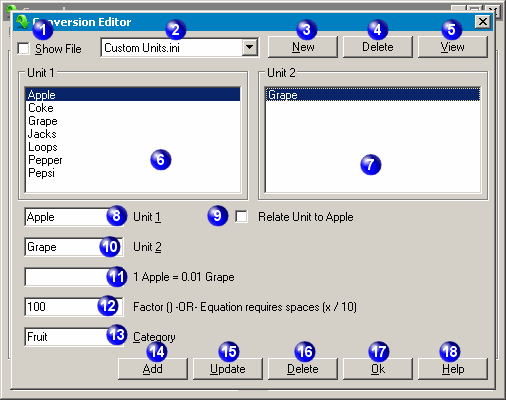
To show the custom conversion file in the main program window and Categories list, check the Show file check box. In the example image above, neither the categories nor the units contained in the Custom Units.ini file will be shown in the main program window.
Select the conversion file to edit using the drop-down list.
3 - New Conversion File Button
To create a new custom conversion file, click the New button.
4 - Delete Conversion File Button
To delete the selected conversion file, click the Delete button.
5 - View Conversion File Button
To view or edit the custom conversion file with your default text editor, click the View button.
Select the desired unit to edit in the left-side list box.
After selecting the desired unit to edit in the left-side list box, select the opposite desired unit to edit in the right-side list box.
Enter the unit to use for the conversion in the left-side unit input box.
If this box is not checked, use either the factor or equation type of conversion. If this box is checked, both the Unit 2 Input Box and the second Factor or Equation Input Box will be greyed out. Using this option will keep file sizes smaller and data entry will be faster. Note: Using this type of conversion the initial equation in each category must be ( x * 1 ).
Enter the other unit to use for the conversion in the right-side unit input box.
11 - Factor or Equation Input Box
Enter the corresponding factor or equation to use in the input box. If using a factor, only one of the two input boxes need to be filled. For example (see image above), 100 should be placed in the second box only. The program will automatically invert the number to calculate the other direction. If using an equation, both input boxes should be used and it should be structured like the following: ( x * 1000 ). The calculation will perform the operation left to right with no regards to the familiar parenthesis. Important reminders:
| Operator | Description |
| + | Adds two numbers. e.g. 10 + 20 (equals 30) |
| - | Subtracts two numbers. e.g. 20 - 10 (equals 10) |
| * | Multiplies two numbers. e.g. 20 * 10 (equals 200) |
| / | Divides two numbers. e.g. 20 / 10 (equals 2) |
| ^ | Raises a number to the power. e.g. 2 ^ 4 (equals 16) |
12 - Factor or Equation Input Box
The same rules apply for this equation input box as the previous.
Enter the category for the conversion in the category input box.
To create a new conversion after filling in the appropriate input boxes, click the Add button. A file must be selected in the combo box (2).
To modify an existing conversion, click the Update button. A file must be selected in the combo box (2).
To exit the conversion editor and return to the main program window, click the Ok button.
To show the Converber help contents, click the Help button.